Set up the WooCommerce integration
Explore our API integration with WooCommerce
Before you can read commerce data from companies using WooCommerce, you need to set up the integration.
You'll need to:
- Sign in to the Codat Portal.
- Enable the WooCommerce integration.
- Check your syncSync The process of fetching the latest data from a connected data source. Syncs can be triggered manually or run automatically on a schedule. settings.
Registration with WooCommerce is not required to set up and enable the integration.
Enable the WooCommerce integration
-
In the Codat Portal, go to Settings > Integrations > Commerce to view the Commerce integrations page.
-
Locate WooCommerce, then select Set up to view the Integration settings page.
-
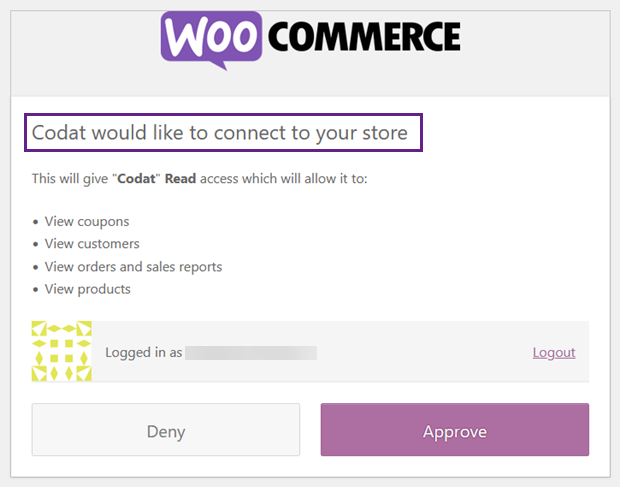
Enter the Application name to appear in WooCommerce. This is displayed when a merchant linksLink The authorization flow that allows end users to connect their accounting, banking, or commerce platforms to your application via Codat. their store and is asked for permission to connect it. For example, using the application name "Codat":
-
Choose what type of access to company data you want for this integration: one-off or continuous.
-
Click Save.
-
In the dialog that appears, click Enable WooCommerce.
You can also click Manage to view the integration's settings page, and then enable the integration from there.
Check your syncSync The process of fetching the latest data from a connected data source. Syncs can be triggered manually or run automatically on a schedule. settings in the Codat Portal
If this is your first commerce integration, update your data type settings to enable commerce data types.