Test your Shopify integration
Test your Shopify integration by reading sample data to a test company
Test your Shopify integration by reading commerce data from a Development Store to a test companyCompany In Codat, a company represents your customer's business entity. Companies can have multiple connections to different data sources. in Codat. This lets you test the LinkLink The authorization flow that allows end users to connect their accounting, banking, or commerce platforms to your application via Codat. flow that your SMBSMB The primary customer segment that Codat helps businesses serve, typically companies with annual revenues under $500 million. customers will see when they share their commerce data from Shopify.
Prerequisites
- Set up your Shopify integration using either the custom apps or public apps connectionConnection A link between a Codat company and a data source (like an accounting platform). Each connection represents authorized access to pull or push data from that platform. method.
- Update your Commerce data type settings to enable commerce data types.
Add a test companyCompany In Codat, a company represents your customer's business entity. Companies can have multiple connections to different data sources.
In the Codat Portal:
- Click Companies > New companyCompany In Codat, a company represents your customer's business entity. Companies can have multiple connections to different data sources..
- In the Add new companyCompany In Codat, a company represents your customer's business entity. Companies can have multiple connections to different data sources. dialog, enter a name for your test companyCompany In Codat, a company represents your customer's business entity. Companies can have multiple connections to different data sources., like
shopify-test, then click Add. The LinkLink The authorization flow that allows end users to connect their accounting, banking, or commerce platforms to your application via Codat. URL for your test companyCompany In Codat, a company represents your customer's business entity. Companies can have multiple connections to different data sources. is displayed.
Keep the Companies page open in your browser.
Create a Development Store and sample data
-
Log in to the Shopify Partners site with your partner account credentials.
-
Select Stores > Add store.
-
On the Add store page, select Development store.
-
Enter all the requested details and make a note of the Store URL.
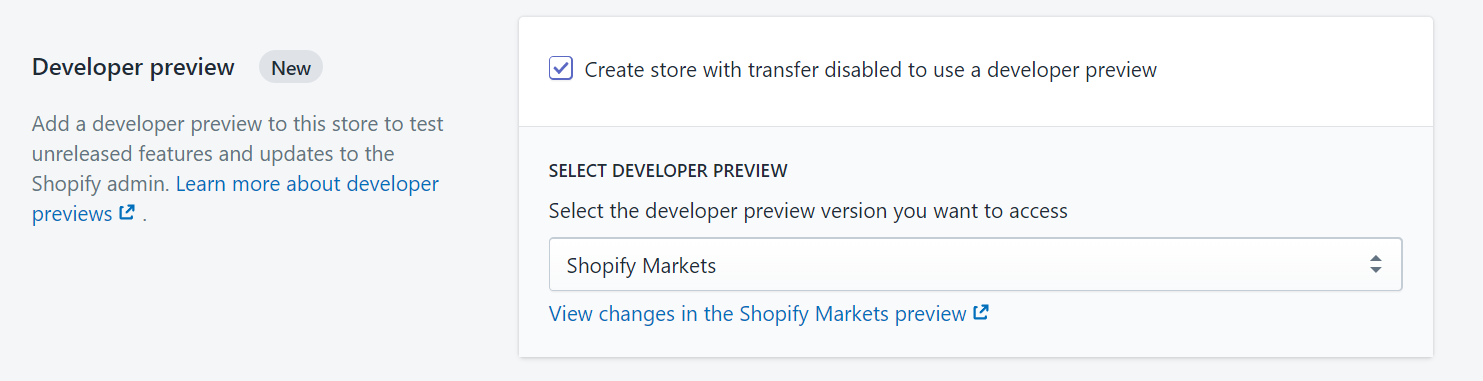
Ensure the Create store with transfer disabled to use a developer preview checkbox is selected, and then choose Shopify Markets from the dropdown list:
-
Click Save.
Next, you need to manually add some sample data to your Development Store. For example, add some products and orders.
Connect your test companyCompany In Codat, a company represents your customer's business entity. Companies can have multiple connections to different data sources. to your Development Store
Test the authorization process that your customers will see when they connect their Shopify account using LinkLink The authorization flow that allows end users to connect their accounting, banking, or commerce platforms to your application via Codat..
In the Codat Portal:
-
Click Companies then locate the test companyCompany In Codat, a company represents your customer's business entity. Companies can have multiple connections to different data sources. you created in the preceding task.
-
Next to the companyCompany In Codat, a company represents your customer's business entity. Companies can have multiple connections to different data sources. name, click Request data.
-
In the Onboarding dialog, copy the LinkLink The authorization flow that allows end users to connect their accounting, banking, or commerce platforms to your application via Codat. URL.
-
Paste the LinkLink The authorization flow that allows end users to connect their accounting, banking, or commerce platforms to your application via Codat. URL into a new browser tab to load LinkLink The authorization flow that allows end users to connect their accounting, banking, or commerce platforms to your application via Codat..
The following steps apply if you're using public apps. If you're using custom apps, go to step six.
-
Complete the steps in LinkLink The authorization flow that allows end users to connect their accounting, banking, or commerce platforms to your application via Codat.; the exact steps shown depend on your LinkLink The authorization flow that allows end users to connect their accounting, banking, or commerce platforms to your application via Codat. settings. You'll need to:
- When asked to select your commerce software, select the Shopify tile.
- Authorize access to the listed commerce data types.
- On the Shopify screen, enter the name of your Development Store then click Continue.
- Log in to your Development Store, if prompted.
When the LinkLink The authorization flow that allows end users to connect their accounting, banking, or commerce platforms to your application via Codat. flow is complete, your Development Store opens and your app is automatically installed into the Store.

-
(If using custom apps.) Complete the steps in LinkLink The authorization flow that allows end users to connect their accounting, banking, or commerce platforms to your application via Codat.; the exact steps shown depend on your LinkLink The authorization flow that allows end users to connect their accounting, banking, or commerce platforms to your application via Codat. settings. You'll need to:
- On the Connect your Shopify store screen, enter the name of your Development Store and your APIAPI A set of rules and protocols that allows different software applications to communicate with each other. Codat provides APIs for accessing financial data from accounting, banking, and commerce platforms. Access Token, then click Continue.
When the LinkLink The authorization flow that allows end users to connect their accounting, banking, or commerce platforms to your application via Codat. flow is complete, your Development Store opens and your custom app is automatically installed into the Store.
Retrieve commerce data
In the Codat Portal, read sample commerce data from Shopify to your test companyCompany In Codat, a company represents your customer's business entity. Companies can have multiple connections to different data sources.:
-
Click Companies then select the test companyCompany In Codat, a company represents your customer's business entity. Companies can have multiple connections to different data sources. you created in the preceding task.
-
Click Data > Commerce in the side navigation menu.
-
View the sample commerce data from your Shopify Development Store.
If no data is displayed, click Queue syncSync The process of fetching the latest data from a connected data source. Syncs can be triggered manually or run automatically on a schedule..